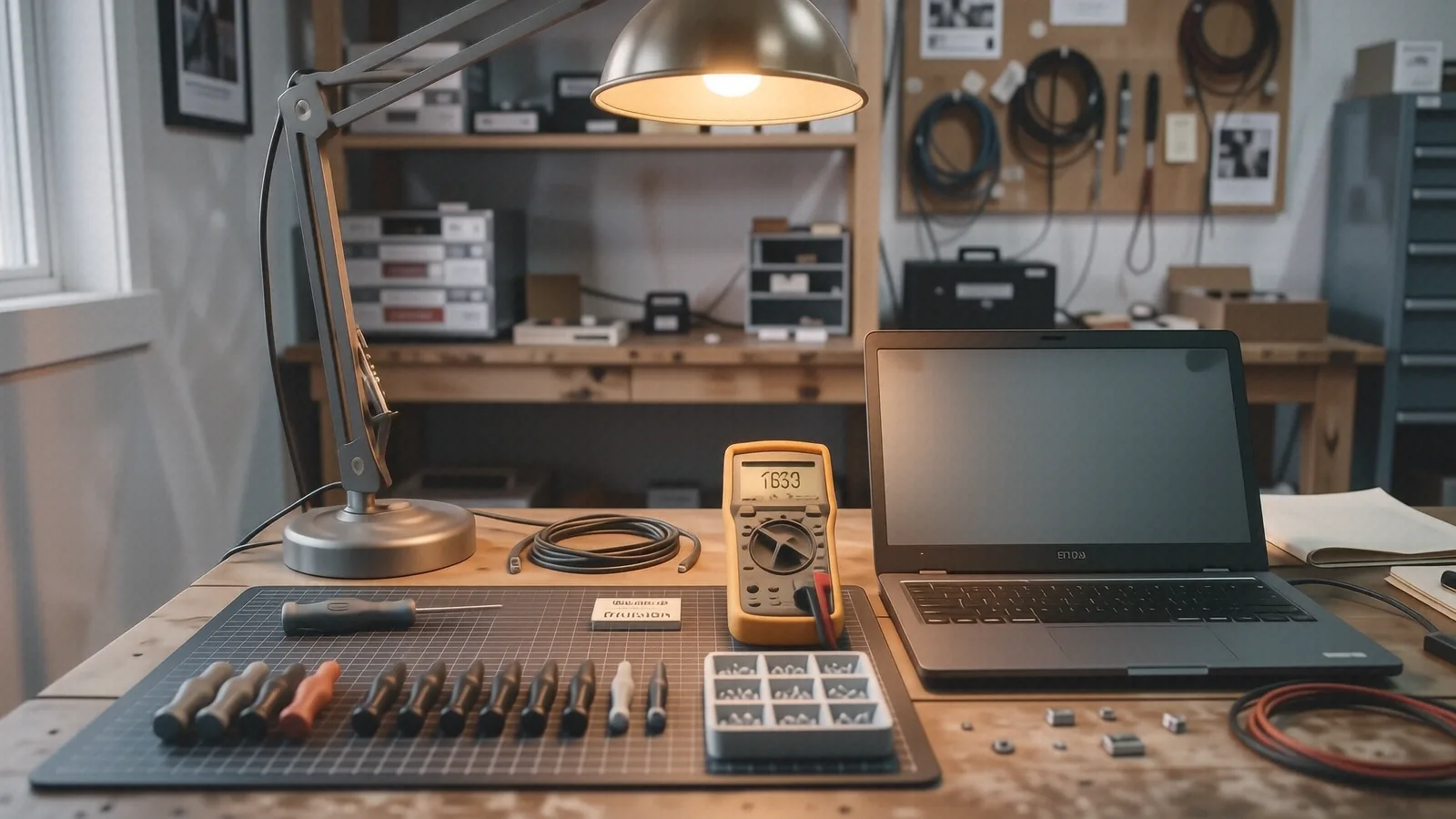
Your computer is running hot
You notice your laptop fan screaming like a jet engine while you are just browsing local news. Maybe your desktop tower feels uncomfortably warm to the touch near the rear exhaust vent. Sometimes the computer simply shuts itself off without warning during a Zoom call or a gaming session. These aren’t just minor annoyances. Your hardware is actively trying to protect itself from permanent damage because heat is the primary enemy of silicon chips and soldered components. When internal temperatures spike, the system will throttle your CPU clock speeds so that it generates less heat, which makes everything feel sluggish and unresponsive.
If you ignore these signs, you risk a total hardware failure. A thermal shutdown is a safety mechanism designed to prevent the GPU die or the processor from literally melting through the motherboard. You might notice a sudden drop in frame rates while playing a game on your HP Pavilion 15. Your screen might flicker or display strange, colored artifacts before the system goes dark. These symptoms mean your cooling system is failing to move heat away from the critical components fast enough.
Try these first
Before you assume your hardware is dead, run a few quick checks to see if the issue is software-based. Open the Task Manager on Windows by pressing Ctrl + Shift + Esc. Look at the “Processes” tab and sort by the CPU column to see if a specific program is hogging all your resources. If a background process is constantly sitting at 90% or 100% usage, it is forcing your processor to work harder than necessary. This constant workload generates massive amounts of heat even if you aren’t doing anything intensive.
On a MacBook Pro Retina, you should open the Activity Monitor from your Applications folder. Check the “CPU” tab for any runaway processes that are consuming excessive cycles. Sometimes a hung web browser tab or a stuck system update can drive temperatures into the danger zone. You can also check your network stability by opening a Command Prompt and typing ipconfig /flushdns if you suspect heat is causing connection drops, though this is more about software cleanup than thermal management.
Check your physical environment for airflow obstructions. If you are using a laptop on a soft surface like a bed, a couch, or a thick rug, you are likely choking the intake vents located on the bottom of the chassis. Laptops require a hard, flat surface so that the air can actually circulate through the internal heatsink. If you see thick layers of gray dust matted against the side vents, try using a can of compressed air to blow it out. Do not use a vacuum cleaner, as static electricity from a vacuum nozzle can fry sensitive components on your motherboard.
Why it usually happens
Most overheating issues stem from one of three physical problems: dust, dried thermal paste, or failing mechanical parts. Over time, every computer acts like a small vacuum cleaner, pulling in hair, skin cells, and carpet fibers through the intake vents. This debris eventually forms a felt-like mat inside the cooling fins of your heatsink. Once that happens, the air cannot pass through the metal fins to carry heat away from the processor. Even if your fan is spinning at maximum RPM, it is just blowing hot air against a wall of dust.
Thermal paste is another silent killer of performance. This substance sits between your CPU and the copper heat pipe to bridge microscopic gaps in the metal surfaces. After three or four years of heat cycles, this paste can dry out, crack, and lose its ability to conduct heat effectively. When the paste becomes brittle, it creates an insulating layer instead of a conductive one. This is why a high-end Dell XPS 13 might run perfectly when it is new but start thermal throttling after several years of heavy use.
Fan failure is the third common culprit. Fans are mechanical devices with bearings that eventually wear out or get gummed up with grime. You might hear a grinding, clicking, or rattling sound coming from your tower or laptop. This indicates the bearing is failing, which prevents the fan from reaching the necessary RPMs to cool the system. In some modern thin-and-light laptops, the cooling system uses a vapor chamber instead of traditional heat pipes. While these are efficient, they can still fail if the internal liquid medium degrades or if the seal is compromised.
Software bloat also contributes to the thermal load. If your startup routine includes twenty different apps that launch as soon as you log in, your CPU never truly enters a low-power idle state. Every one of those background tasks requires a tiny bit of voltage, and that voltage translates directly into heat. While it might seem minor, the cumulative effect of constant background activity keeps your internal temperature baseline much higher than it should be.
When to bring it in
You should stop trying to DIY a fix if you see specific signs of hardware distress. If you hear a loud grinding noise coming from your fans, the motor is likely dying and needs a physical replacement. Cleaning with compressed air won’t fix a broken bearing. If your laptop shuts down instantly while you are doing basic tasks like typing in Word or checking email, the thermal protection circuit is being triggered almost immediately. This usually points to a major failure in the thermal interface material or a completely clogged heatsink assembly.
Do not attempt to take apart a modern MacBook or a thin Surface Laptop 5 unless you have the specialized precision drivers and experience required. These devices use heavy amounts of adhesive to hold the components together, and one wrong move with a pry tool can snap a delicate ribbon cable or crack the digitiser. If your computer is still under warranty, opening the chassis will almost certainly void that coverage.
If you notice “Blue Screen of Death” errors accompanied by heat, your system is likely experiencing hardware instability. When the CPU or GPU gets too hot, it begins to make calculation errors. These errors cause Windows to crash because the data being processed is no longer reliable. This is a serious warning sign that the heat is affecting the actual logic of the processor. If you see these crashes occurring more than once a week, it is time to get a professional diagnostic.
Sometimes the problem is deeper than just a fan or some dust. A failing power supply unit (PSU) in a desktop computer can provide “dirty” power with voltage fluctuations that cause components to run hotter than intended. If you are running a high-end gaming rig with a powerful GPU, your PSU might simply be underpowered for the load, causing it to struggle and overheat itself. Identifying these subtle electrical issues requires specialized testing equipment like a multimeter or a dedicated PSU tester.
Get a professional diagnostic in Centerville
If your computer is acting up, don’t wait until it stops turning on entirely. A small amount of dust or a $10 tube of thermal paste can be an easy fix if caught early. However, waiting too long often turns a simple cleaning job into a much more expensive motherboard replacement. We have seen many customers come in after a “small” overheating issue resulted in a fried GPU die because they tried to limp the machine along for too long.
Bring your device to our shop at 264 N. Main Street, Suite C, right here in Centerville, OH 45459. We offer a free diagnostic service so you can know exactly what is wrong before you commit to any repairs. Our technicians will inspect the internal temperatures, check the health of your fans, and look for signs of thermal throttling using professional-grade software.
We typically provide a full report on your system’s health within 1-3 business days. Whether it is a simple fan replacement or a deep internal cleaning with high-grade thermal paste, we will give you a clear, upfront price. You can find us near the heart of Centerville, and our doors are open Monday through Friday from 10am to 7pm. Give us a call at (937) 660-4819 if you have questions before heading over.