Getting Technical Help Without Leaving Your Desk
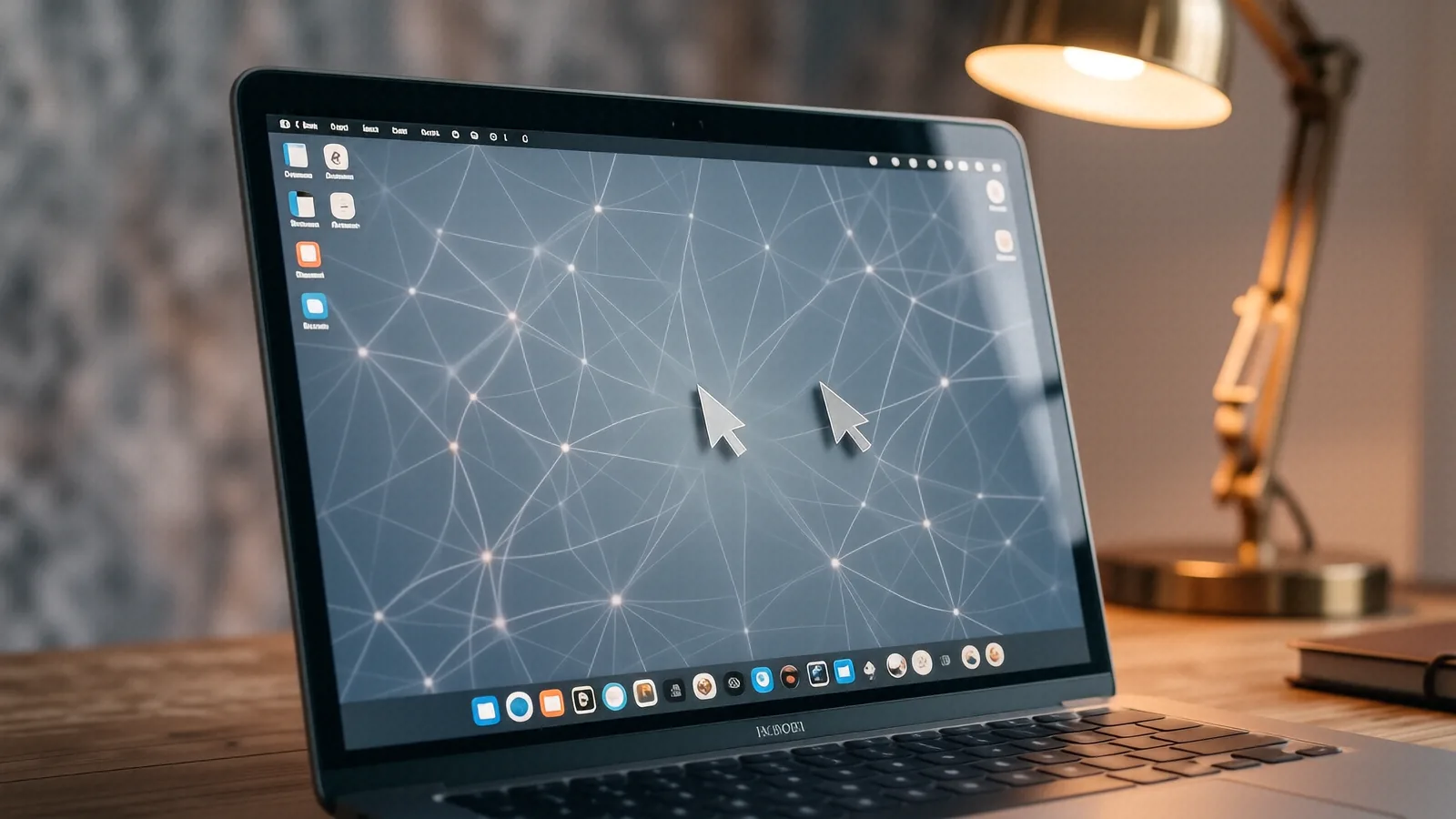
Software issues don’t care if you are sitting in your home office or working from a coffee shop near the Centerville Library. You might see a sudden “Blue Screen of Death” on your Dell XPS 13, or perhaps your MacBook Pro Retina is suddenly refusing to connect to your printer. These problems often feel overwhelming when you can’t physically touch the machine. Remote support allows us to jump into your system through a secure connection so that we can see exactly what your operating system is seeing. We use professional-grade tools to bridge the gap between our bench at 264 N. Main Street and your current location.
It saves you time. While many people assume they need to drive down near OH-48 to get help, most software glitches are actually solvable through a remote session.
Software Configuration and Setup Services
Setting up a new device can be a headache if the drivers aren’t playing nice with your peripherals. If you just unboxed a brand new Lenovo ThinkPad T-series, you might find that the trackpad feels jumpy or the Wi-Fi keeps dropping out. We handle these configuration tasks remotely by checking your Device Manager and ensuring every driver is current. Sometimes a single outdated chipset driver causes more trouble than a failing hard drive. We can verify your BIOS version and adjust system settings while you watch our screen movements.
We fix driver conflicts. Because many manufacturers release buggy updates, we often have to roll back a specific driver to a previous, stable version so that your hardware functions correctly again.
Network and Connectivity Troubleshooting
Your internet connection is the lifeline of your digital life. If your HP Pavilion 15 can see the Wi-Fi signal but refuses to actually load a webpage, the problem might be buried in your DNS settings or your IP configuration. We use command-line tools like ipconfig /flushdns to clear out old data that might be clogging your connection. While we can’t physically reach into your router, we can often fix the way your computer communicates with it. This is especially helpful if you are experiencing intermittent drops during important video calls.
We stabilize your connection. After we identify whether the issue lies within your Windows registry or your local network adapter, we apply a permanent fix so that you don’t have to call us back tomorrow.
Software Installation and Optimization
Sometimes you just need a specific program to work, but the installation keeps failing due to a permissions error. Whether it is Adobe Creative Cloud on a Mac or specialized accounting software on a Windows machine, we can navigate the installation wizard for you. We also help with license activation issues when your software thinks you are using an unauthorized version. If a program is crashing every time you launch it, we will dig into the Event Viewer to find the specific error code. This process allows us to bypass the guesswork that usually leads to frustration.
Installation takes minutes. Although some complex enterprise suites require more testing, most standard consumer applications can be configured and verified in a single remote session.
The Quick Tune-Up for Sluggish Systems
Is your computer acting like it’s running through molasses? A typical Dell Inspiron owner might notice that their startup time has jumped from ten seconds to three minutes over the last year. This slowdown is rarely caused by a broken part, but rather by a bloated operating system filled with background processes. During a remote quick tune-up, we look at your Task Manager to see which applications are hogging your CPU or RAM. We disable unnecessary startup items that trigger every time you log in.
We reclaim your speed. By cleaning up temporary files and managing your registry, we can often make an older machine feel much snappier than it has in months.
Managing Startup Impact
Every single app you install wants a piece of your boot sequence. If you have five different cloud storage services and three messaging apps all trying to launch at once, your system will struggle to become usable. We go through your startup list and prune anything that isn’t essential for your daily workflow. This doesn’t mean we delete your programs; we simply tell the operating system not to load them until you actually click on them.
Your boot time improves. Once we trim the fat from your background processes, you will notice that your laptop reaches a ready state much faster than before.
Disk Space and Registry Health
When an NVMe SSD gets too full, the entire operating system starts to stutter because it lacks the “breathing room” needed for virtual memory swapping. We use remote tools to identify massive, forgotten files that are eating up your storage capacity. We also look for broken registry entries that might be causing system instability or slow response times. While we don’t perform “registry cleaning” in a way that risks your data, we do address the specific errors that cause software conflicts.
Storage matters for speed. If your drive is 95% full, you should expect performance issues regardless of how expensive your processor is.
One-Time Fixes for Urgent Errors
Sometimes you don’t need a tune-up; you just need one specific thing to stop breaking. You might be staring at a “DLL missing” error or a specific pop-up that won’t go away no matter how many times you click the ‘X’. These one-time fixes are designed to address a single, isolated symptom without a full system overhaul. We focus our diagnostic energy on that one specific error code or behavior. This is often the most cost-effective way to handle minor annoyities.
We solve the immediate problem. Because we can see your screen in real-time, we don’t have to wait for you to describe what you are seeing, which speeds up the entire repair process.
Malware and Adware Removal
If your browser is suddenly redirecting you to strange search engines or showing constant pop-ups, you likely have a piece of adware. We use remote access to run deep scans and remove malicious extensions that are hijacking your web traffic. While we can’t replace a physically damaged hard drive remotely, we can certainly clean up the digital clutter that makes your computer feel infected. We check your running processes to ensure no hidden scripts are consuming your bandwidth in the background.
Security is our priority. After we clear the infection, we provide you with specific steps so that you can avoid similar threats in the future.
Error Message Resolution
Error messages can be incredibly cryptic and useless for the average person. A message like “Exception Code: 0xc0000005” tells us nothing about how to fix it, but it tells a technician exactly what kind of memory violation occurred. We take those codes and cross-reference them with known issues for your specific hardware model. Whether it is a Windows Update error or a macOS kernel panic, we hunt down the root cause.
We decode the jargon. Once we find the culprit, we apply the patch or configuration change required to stop that specific error from recurring.
How Our Remote Process Works
We don’t want you driving all the way to Centerville if you don’t have to. Our remote support follows a very structured path to ensure your data stays safe and our connection remains secure. First, you call us at (937) 660-4819 to schedule a session or request an immediate look at a problem. Once we agree on a time, we provide you with a unique code that you enter into a secure remote desktop application. This gives us permission to view and control your screen, but you retain full control of your mouse and keyboard if you want to watch us work.
The process is transparent. You can see every click we make, which means you are never left wondering what we are doing to your files or settings.
Step 1: The Initial Consultation
Before we ever touch your machine, we talk through the symptoms with you. We ask questions about when the problem started and if you recently installed any new hardware or software. This helps us narrow down our diagnostic path so that we don’t waste time on things that aren’t broken. If we realize the problem is actually a physical hardware failure—like a cracked screen on a Surface Laptop 5 or a dead GPU die—we will tell you immediately that remote support won’t work.
We value your time. If we can’t fix it remotely, we will suggest bringing the device to our shop on N. Main Street so we can perform a hands-on repair.
Step 2: Diagnosis and Quote
Once we are connected, we begin our diagnostic routine. This might involve checking SMART data for drive health or running a quick system scan to see if any files are corrupted. After we identify the cause, we will stop and give you a clear, plain-English explanation of what is wrong. We provide a firm quote before we proceed with any actual repairs. You will never see an unexpected charge on your bill because we confirm the price before the work begins.
No surprises occur. Because we provide a quote upfront, you can decide if the repair makes sense for your budget before we spend any more time on the machine.
Step 3: The Repair and Verification
After you approve the quote, we get to work. We apply the fixes, install the drivers, or clean up the software as discussed. Once the task is complete, we don’t just disconnect; we ask you to test the system yourself. We want to make sure that your printer actually prints or that your Dell XPS 13 actually boots quickly before we end the session. This verification step ensures that the problem is truly resolved and not just temporarily suppressed.
We verify every fix. Only after you are satisfied with the results do we close the connection and finalize the billing process.
When Remote Support Isn’t Enough
There are certain things a technician simply cannot do through a screen. If your laptop won’t turn on at all, or if you see lines running across your display, those are physical hardware issues. A cracked ribbon cable or a spilled drink inside a ThinkPad requires us to physically open the chassis and replace components. We also cannot fix problems caused by total mechanical failure of an NVMe SSD or a blown capacitor on a motherboard.
Know your limits. If we determine that your issue is hardware-based, we will help you coordinate a drop-off at our Centerville location for a traditional bench repair.
Physical Hardware Failures
Hardware issues require tools like screwdrivers, spudgers, and soldering irons. If your battery is swelling or your cooling fan has died, no amount of remote software tweaking will solve the problem. In these cases, you should bring your device to our shop near the intersection of OH-48 and I-675. We can perform a full diagnostic in person and order the exact replacement parts needed for your specific model.
Hardware needs hands-on care. While software is invisible, hardware is tangible, and it requires a physical presence to repair correctly.
Severe Data Loss Scenarios
If your hard drive has physically failed and you are seeing “No Bootable Device Found,” remote support is impossible because the computer cannot load an operating system. In these high-stakes situations, we recommend bringing the machine directly to us so we can attempt data recovery using specialized hardware. We handle these sensitive cases with extreme care to ensure your files have the best chance of survival.
Data is precious. If your drive is clicking or not spinning, stop trying to turn it on and bring it to our bench immediately.
Our Commitment to You
We treat every computer like it belongs to a neighbor because, in Centerville, we actually are your neighbors. We provide a 90-day workmanship warranty on all our remote services to ensure that the fix actually sticks. If the same software error returns within that window, we will jump back into a remote session and resolve it at no additional cost to you. We don’t believe in “quick fixes” that break a week later; we believe in doing the job right the first time.
We stand by our work. Our reputation is built on being honest about what can be fixed and what simply isn’t worth the cost of repair.
If you are ready to get started, please call us at (937) 660-4819 to schedule your remote session or visit us at 264 N. Main Street, Suite C, to drop off a device for in-person service.