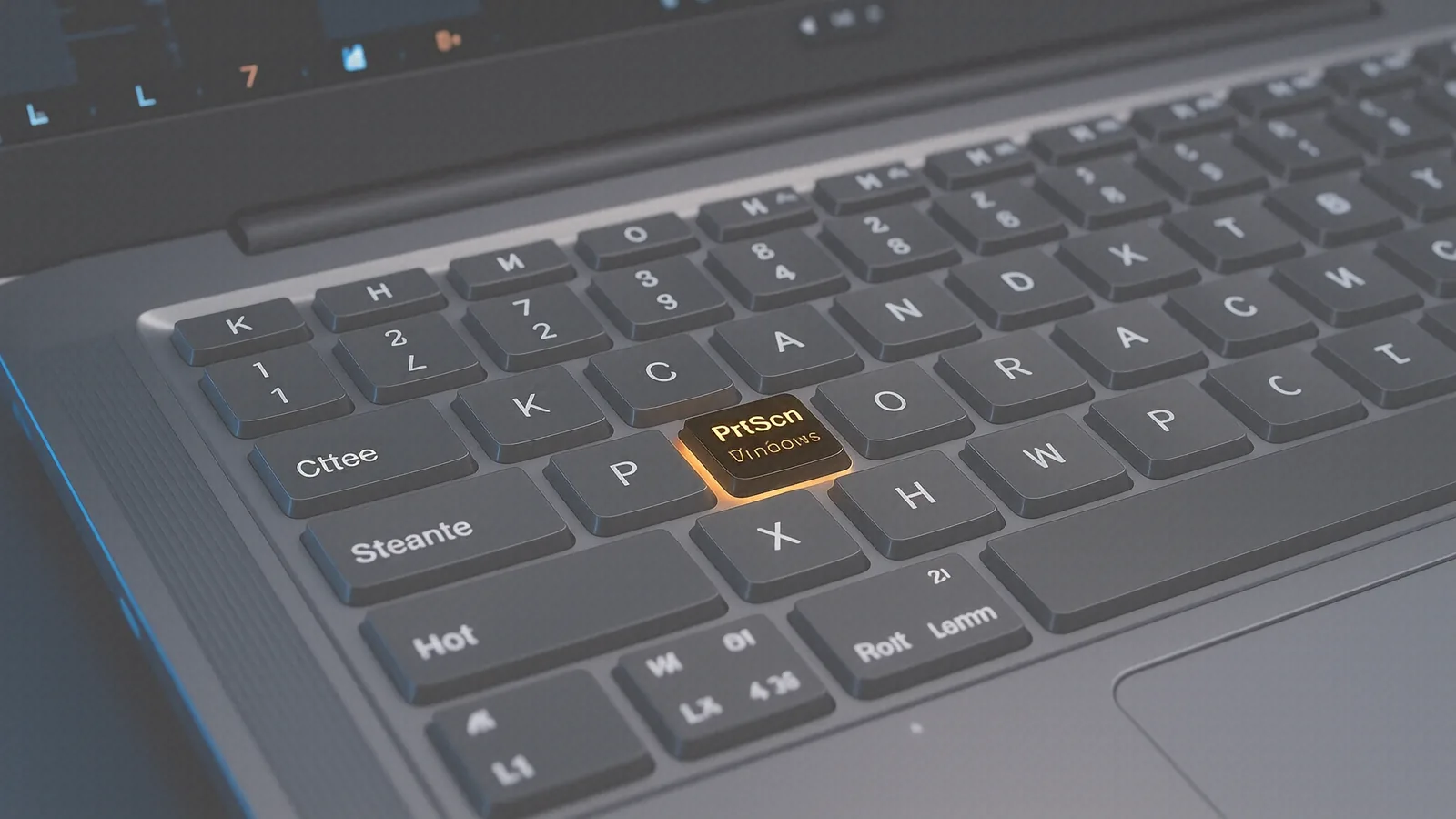
How to take a screenshot on HP laptop models
If you need to capture a digital receipt, a critical error message on your HP Pavilion 15, or a specific software window, knowing how to take a screenshot is essential for troubleshooting and documentation. Whether you use an HP laptop or desktop computer, the exact process depends heavily on your specific hardware layout and the version of the operating system you are running. You can quickly capture a screenshot using built-in Windows tools without needing to download third-party software.
Ways to take a screenshot on an HP laptop
There are several ways to take a screenshot depending on whether you want the entire screen or just a specific portion of your display. Modern HP hardware, such as the HP Envy or Spectre series, offers multiple keyboard shortcuts to streamline this process.
Using the Snipping Tool and Snip shortcuts
The most versatile way to take a screenshot is by using the modern Snipping Tool. On Windows 10 or Windows 11, you can trigger the interface by pressing the Windows key + Shift + S simultaneously. This specific shortcut activates the screen capture tool, causing your display to dim slightly so you can focus on your selection.
Once the overlay appears, you have several options for how to snip your content:
- Rectangular Snip: You can draw a box around a specific rectangular area of the screen.
- Freeform Snip: This allows you to draw any shape around an object.
- Window Snip: This captures a single, specific application window.
- Full-screen Snip: This grabs everything visible on your monitor.
When you select your desired area, the image is automatically copied to your system clipboard. To view it, open an application like Microsoft Paint or a Word document and paste the screenshot using the Ctrl + V command. If you make a mistake during the selection process, simply hit the delete key to clear your current progress and try again. Using this method to snip content is often much faster than searching for the app manually in the Start menu.
Using the Print Screen button
If you want to capture the whole screen instantly without selecting a specific area, look for the print screen key on your keyboard. On most HP models, this is labeled as PrtSc or prt sc.
- Standard Capture: Pressing the print screen key alone copies the full screen image to your clipboard. You must then paste it into another program to see it.
- Direct Save: To save your screenshot automatically as a high-quality file, press the Windows key + PrtSc. Your HP computer will dim for a split second, indicating the action was successful. The image will be stored in your
Pictures > Screenshotsfolder. - Active Window Capture: If you only want to capture the window you are currently using, press Alt + PrtSc. This prevents your taskbar or background wallpaper from appearing in the image.
On a high-end HP Envy or a compact Spectre, the prt sc key often shares a function with another command on the same physical key. If pressing it alone does nothing, you must press and hold the Fn (Function) key while hitting the print screen button to activate the command.
Screenshot on HP laptop: Advanced Screen Capture Methods
For users who need to take screenshots frequently for work or gaming, understanding different ways to take images can save significant time. If you are using an hp laptop or desktop, you might also consider using the Xbox Game Bar. By pressing the Windows key + G, you open a dedicated overlay that includes a camera icon designed specifically to capture a screenshot during gameplay or video playback.
Screenshot on an HP tablet
If you are using a 2-in-1 device like an HP Pavilion x360 in tablet mode, you won’t have a physical keyboard to press the shift key or Windows key. In this scenario, you should use the “Print Screen” button found in the Windows Action Center. Swipe in from the right side of the screen to open the notification panel, then tap the “Screen snip” tile to initiate a snip.
Troubleshooting screenshots on HP devices
Sometimes, you might want to capture the screen on your HP device but find that the commands are not responding. If you are using an hp laptop or desktop computer, first check if your hardware is communicating correctly with the software.
Why can’t I take a screenshot?
If you cannot take screenshots on HP hardware, several technical factors might be at play:
- Fn Lock: Your keyboard might require the Function key to access the prt sc command. Look for a small light on your Fn key or check if your F-keys are performing secondary tasks like volume control.
- OneDrive Interference: On many Windows 10 systems, Microsoft OneDrive may intercept your screen capture and automatically save it to your cloud storage instead of your local hard drive.
- App Glitches: If the snipping tool refuses to launch, navigate to Settings > Apps, find the tool in the list, and select “Repair” or “Reset.”
How do I take a screenshot on an HP Chromebook?
The process is fundamentally different for ChromeOS devices. To take screenshots on a Chromebook, you must press Ctrl + Show Windows (the key that looks like a rectangle with two lines next to it). This will capture the entire display and save it directly to your “Downloads” folder.
Frequently Asked Questions
How do I activate the Print Screen button?
On most HP laptops, you activate it by pressing the PrtSc key. If that fails, press and hold the Fn key while pressing the print screen button to trigger the command. This is common on newer models where the function row is shared.
How do I factory reset my HP laptop?
To perform a factory reset, restart your device and repeatedly press the F11 key during the initial boot sequence to enter the HP Recovery Manager. From there, select “System Recovery” to restore your hp computer to its original factory settings, which will erase all local data.
How to screenshot on HP computer?
To take a screenshot on hp hardware, the quickest method is using the Windows key + Shift + S for a custom snip, or the PrtSc key for a full capture. Both methods rely on the built-in Windows imaging tools.
So, how to take a quick screenshot on HP computer?
If you want the fastest possible method, use the Windows key + PrtSc combination. This bypasses the need to manually paste the image into an editor because it saves the file directly to your Pictures folder.
If you are experiencing persistent issues with your keyboard, a broken print screen key, or a laptop that refuses to execute commands, Dayton PC Repair is here to help. We specialize in hardware and software repairs for every hp laptop or desktop computer model, including the Pavilion, Envy, and Spectre lines.
Visit us at 264 N. Main Street, Suite C, Centerville, OH, or call (937) 660-4819 to schedule a free diagnostic.