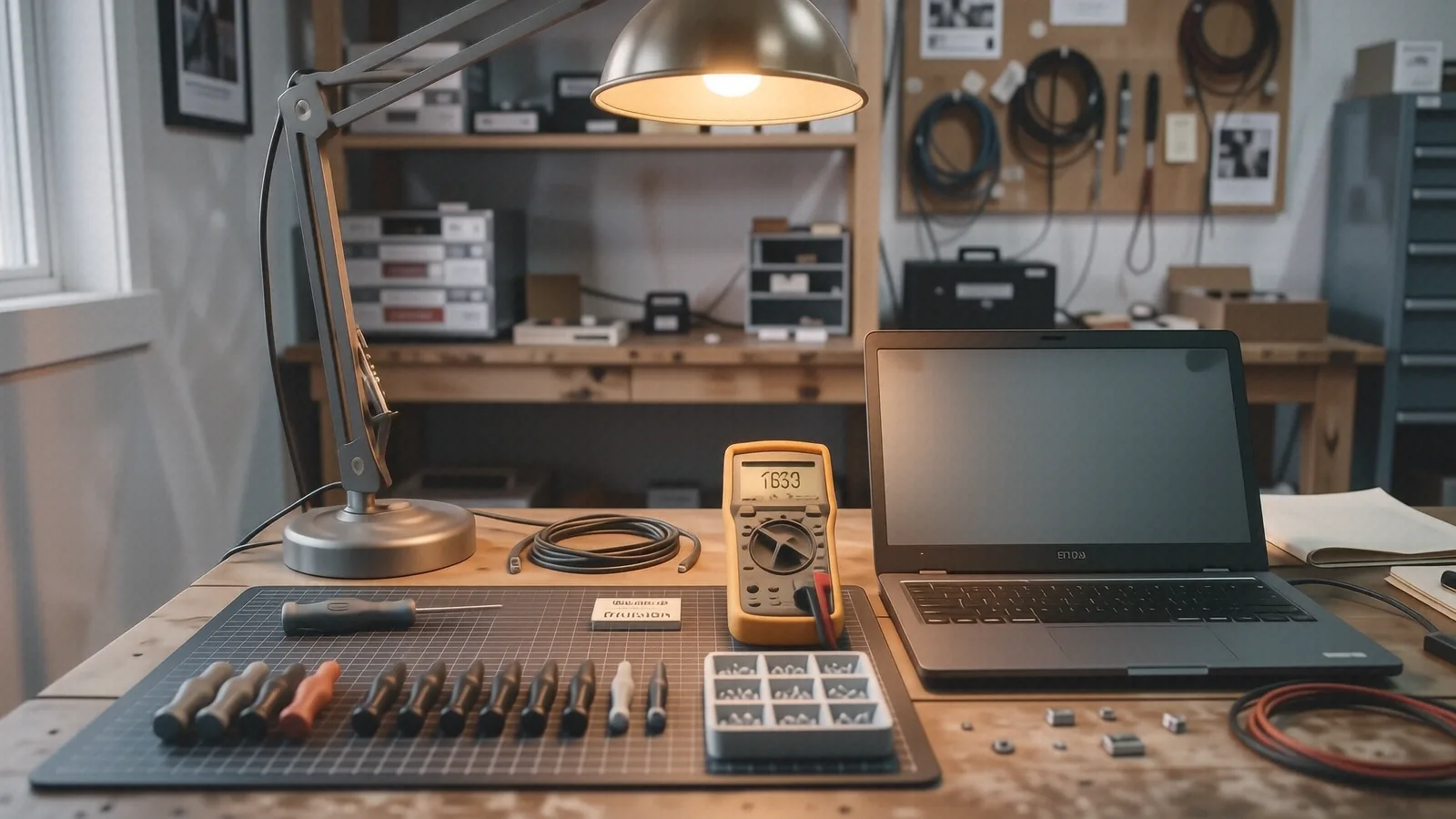
Stop wondering if your current setup is failing you
You sit down at your desk, hit the power button, and wait. Maybe your laptop fan starts screaming like a jet engine while you try to open a single Chrome tab. Or perhaps you stare at a desktop tower that feels sluggish because it hasn’t been upgraded since 2019. You are likely asking yourself if you should just buy a new MacBook Pro or if a custom-built Windows desktop would actually solve your frustration.
Choosing between a laptop and a desktop in 2026 isn’t about which machine is “better” in a vacuum. It is about matching the hardware to your actual daily habits. If you spend your life moving between a home office, a coffee shop in Centerville, and a library, a desktop is just a heavy paperweight. However, if you are a gamer or a video editor who needs massive thermal headroom, a thin laptop will eventually throttle your performance because the heat has nowhere to go.
The decision usually boils down to three things: portability, power, and repairability. You need to look at how much you actually move your gear. If your computer stays on the same desk for 95% of its life, you are paying a “portability tax” every time you buy a laptop.
Run these quick self-checks before you spend a dime
Before you go out and drop $1,500 on a new machine, you should see if your current hardware is actually the problem. Many people think they need a whole new system when they really just need a simple component swap or a software scrub.
First, check your drive health. If you are on Windows 11, right-click the Start button and select Terminal (Admin). Type wmic diskdrive get status and hit Enter. If it returns anything other than “OK,” your NVMe SSD is likely failing and causing those freezes. A new drive costs about $80 and can make an old Dell XPS 15 feel brand new.
Next, look at your resource usage. Open Task Manager by pressing Ctrl + Shift + Esc. Click the “Performance” tab and watch your CPU and Memory percentages while you perform your usual tasks. If your RAM usage is constantly hitting 90% or higher while you only have a few apps open, you don’t need a new computer; you just need to upgrade from 8GB to 16GB or 32GB of RAM.
Finally, check your battery cycles if you are using a laptop. On a MacBook, click the Apple icon, select “About This Mac,” then “More Info,” and find your System Report under the Hardware section. Look for “Cycle Count” under the Power category. If that number is over 1,000, your battery is likely chemically aged and won’t hold a charge for more than an hour.
A quick software refresh can also solve many “slow computer” complaints. Running ipconfig /flushdns in a command prompt can fix weird web browsing issues that feel like hardware lag.
The case for the portable lifestyle
Laptops have changed immensely over the last decade, especially with the rise of highly efficient silicon. If you choose a MacBook Pro with an M-series chip, you get incredible battery life that can actually last a full workday without a charger. These machines are great because they handle heavy tasks like photo editing while staying remarkably cool.
However, you must accept certain trade-offs when you go mobile. Most modern laptops, like the Surface Laptop 5 or the HP Pavilion 15, use soldered RAM. This means if you realize six months from now that you need more memory for multitasking, you cannot simply pop a new stick in; you have to buy an entirely new laptop.
Windows 11 Laptops: The versatile workhorses
Windows laptops offer the widest range of choices. You can find budget-friendly models for students or high-end workstations for engineers. If you go the Windows route, I always recommend looking for at least 16GB of RAM and a dedicated GPU if you plan on doing anything beyond typing emails.
A typical Windows laptop user should watch out for thermal throttling. Because these machines are so thin, they use small fans and tiny vapor chambers to dissipate heat. When the GPU die gets too hot during a heavy task, the system will intentionally slow itself down so it doesn’t melt. This is why your laptop might feel fast for ten minutes and then suddenly crawl.
macOS: The polished ecosystem
Mac users generally trade customizability for stability and build quality. A MacBook Pro Retina display is one of the best screens you can buy for color-accurate work. While these machines are incredibly reliable, they are also much harder to repair at home. If a ribbon cable snaps or the digitiser on your screen fails, you aren’t fixing that with a screwdriver from a local hardware store.
You should consider your ecosystem before buying. If you already own an iPhone and an iPad, the way a Mac handles Universal Control and AirDrop makes your workflow much smoother. But if you are a heavy gamer, you will find that most major titles simply do not run on macOS without significant workarounds.
Why desktops still rule the high-performance world
If you want the absolute most “bang for your buck,” a desktop is the winner every single time. You can get significantly more raw processing power for $1,200 in a desktop tower than you can in a laptop of the same price. This is because desktops have massive airflow and large cooling fans that prevent heat from building up.
The modular advantage
The best thing about a desktop is that it grows with you. If a new generation of graphics cards comes out, you just unplug the old one and plug in the new one. If you find that your storage is getting full, you can add three more SATA SSDs or an extra M.2 drive in about ten minutes.
This modularity makes desktops much more sustainable for long-term use. A well-maintained desktop can easily last 7 to 10 years because you can replace individual parts as they fail or become obsolete. You aren’t throwing the whole machine away just because the processor is a little slow.
The workstation setup
For professionals, a desktop allows for a multi-monitor setup that actually works. While you can plug two monitors into a high-end laptop via a Thunderbolt dock, a desktop handles multiple 4K displays with much more stability. If you are an architect using CAD software or a video editor working with 8K footage, the dedicated power supply in a desktop provides the steady voltage needed for those heavy loads.
You also get better ergonomics. You can position your monitor at eye level and use a mechanical keyboard that doesn’t feel like mushy plastic. This prevents the neck strain and wrist fatigue that often come from hunching over a laptop screen for eight hours a day.
When to stop troubleshooting and bring it in
There is a fine line between “DIY enthusiast” and “making things worse.” Some problems are simply not worth your time or risk to your hardware. If you see smoke, smell something like burning ozone, or hear a loud grinding noise coming from a fan, shut the machine down immediately.
You should also seek professional help if you encounter these specific symptoms:
- The Blue Screen of Death (BSOD): While sometimes caused by a bad driver, frequent BSODs often point to failing hardware like a motherboard or a dying RAM module.
- No Power at All: If your laptop won’t turn on even when plugged into a known working outlet, the DC jack or the internal charging circuitry might be fried.
- Liquid Spills: If you spilled coffee on your keyboard, do not try to “dry it out” with rice. Rice creates dust that clogs fans and does nothing for the corrosion happening under the chips.
- Persistent Clicking Sounds: This is a classic sign of a mechanical hard drive failing. If you hear this, back up your data immediately and get the drive replaced.
- Screen Artifacts: If you see weird lines, flickering, or colored blocks on your display, your GPU or the display ribbon cable is likely dying.
Trying to fix these things yourself without the right tools can lead to a broken screen or a shorted motherboard. A single slip with a precision screwdriver can turn a $100 repair into a $600 replacement.
Finding the right balance for your budget
In 2026, the gap between “good” and “great” hardware is wider than ever. You shouldn’t buy a high-end gaming laptop if you only use it for Netflix, but you also shouldn’t try to edit 4K video on a $300 Chromebook.
If you are undecided, look at your current computer’s specs. If you find yourself constantly hitting the limits of what your machine can do, it is time to move up. A desktop offers longevity and power, while a laptop offers freedom and convenience. Most people actually end up needing both: a powerful desktop for “heavy lifting” at home and a reliable, mid-range laptop for everything else.
If you are staring at a broken screen or a computer that refuses to boot, don’t guess which part is broken. We provide free diagnostics at our shop so we can tell you exactly what is wrong before you commit to any repairs. You can find us at 264 N. Main Street, Suite C, in Centerville, OH 45459.
We typically have most repairs completed within 1-3 business days depending on the parts required. If you need to talk to a technician, give us a call at (937) 660-4819.