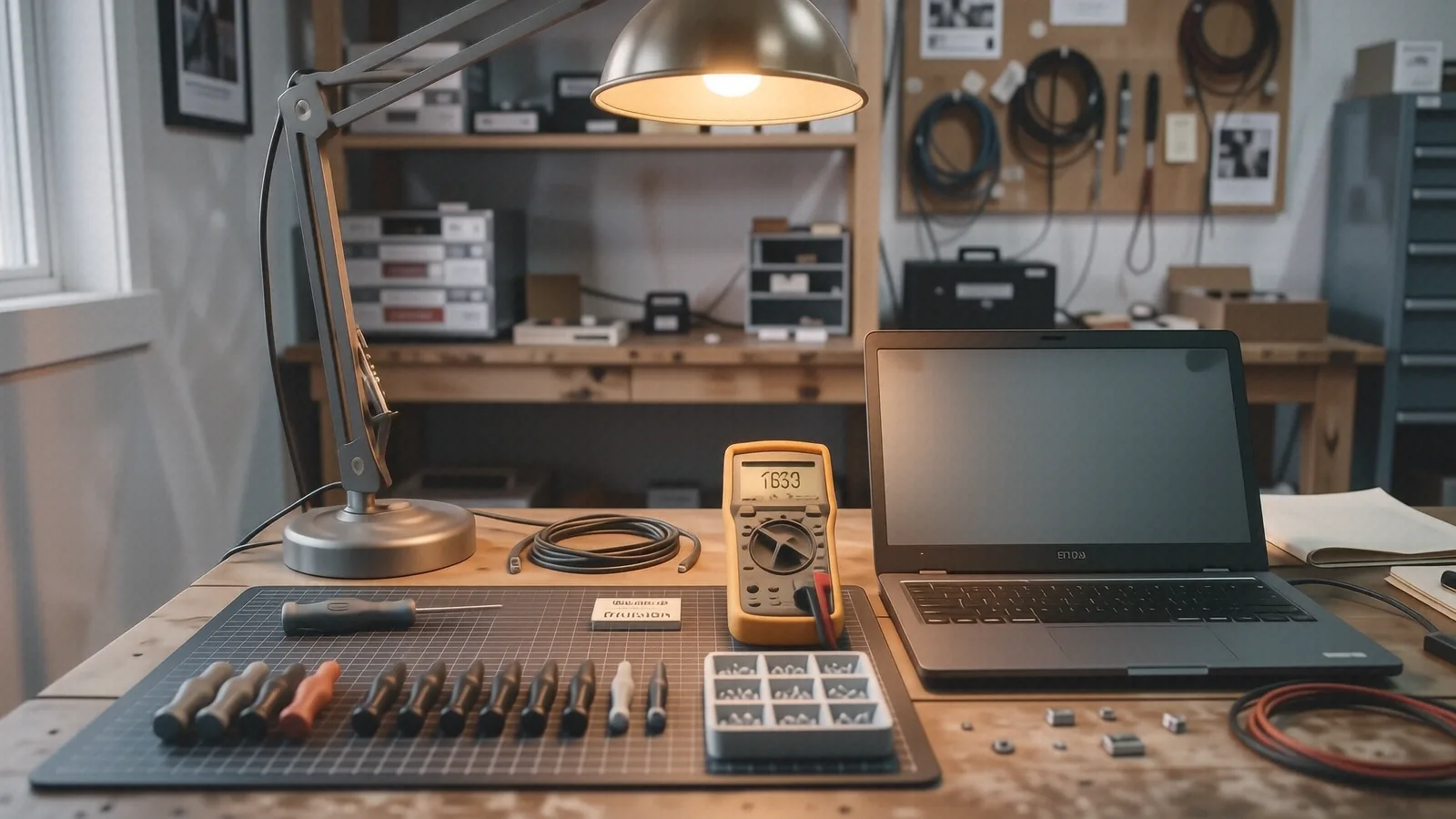
A laptop is called a laptop for the most literal reason imaginable: it is a portable computer built to sit on top of your lap. The name is just those two words pushed together. It was coined in the early 1980s as a direct contrast to the desktop computer — the heavy machine that sits on top of a desk. One word tells you where the device is meant to live.
That sounds simple. The history behind it is more interesting than the etymology suggests.
What is a laptop computer? A plain definition
A laptop computer is a self-contained personal computer built for mobile use. Everything a user needs is integrated into one folding shell: the screen, the keyboard, the trackpad, the speakers, the digital storage, and a rechargeable battery. Unlike a desktop, it needs no external peripheral to function — though you can still plug devices into a port or join a wireless network whenever you want. The defining trait is that a laptop weighs less than a desktop setup and carries its full capability anywhere. That portability, packed into a single device, is exactly what the name is meant to signal.
What “laptop” actually means
Break the word in half and you have your answer. “Lap” plus “top.” A desktop computer sits on top of a desk. A laptop sits on top of your lap. Same logic, opposite furniture. The naming followed the pattern engineers already used for the stationary personal computer, so when a smaller, portable laptop computer arrived, the mirror-image label was obvious.
The word describes intent, not daily reality. Most people use their laptop on a desk, a kitchen counter, or a couch cushion — almost anywhere except an actual lap, since a warm machine on bare thighs gets uncomfortable fast. The name stuck anyway. It captured the one thing that made these computers different: you could pick the whole thing up and carry it.
Before “laptop” there was “luggable”
The first portable computers did not earn the lap label. They were too big.
The Osborne 1, released in 1981, is usually cited as the first commercially successful portable computer. It weighed roughly 24 pounds and folded up to the size of a sewing machine. The Compaq Portable followed in 1983 with a similar briefcase-with-a-handle design. The industry nickname for these machines was blunt and honest: “luggable.” You could move one, but you would not enjoy it, and you certainly would not balance it on your knees.
A few machines bridged the gap. The Epson HX-20, shown in 1981, was about the size of a sheet of paper and is often called the first true laptop. The GRiD Compass 1101, designed by Bill Moggridge in 1982, introduced the clamshell shape — a screen that folds down onto the keyboard — that every laptop still uses today. NASA flew the GRiD Compass on the Space Shuttle. Once hardware shrank to this scale, “luggable” no longer fit, and “laptop” took over to describe a machine light enough to actually rest on a lap.
Why a laptop is also called a notebook
Here is where the naming gets a second layer. You have probably seen the same device called a “notebook” or “notebook computer,” and that word has its own origin.
By the late 1980s, manufacturers had pushed portable machines down to roughly the footprint of a paper notebook — A4 or US letter size. The NEC UltraLite arrived in 1988, and the Compaq LTE followed in 1989. Both were marketed as “notebook computers” precisely because they were small and thin enough to slide into a bag alongside your paper notes. The comparison was deliberate: this computer is about the size of the notebook you already carry.
For years the two words implied a small difference. A laptop was the broad category. A notebook was the smaller, lighter, thinner version. Toshiba, IBM, and Compaq all used “notebook” as a marketing signal for portability. Apple joined the same wave with the PowerBook in 1991, a machine that pushed the notebook form factor into the mainstream and later evolved into today’s MacBook. That distinction between laptop and notebook has since dissolved. A modern Dell XPS 13, a MacBook Air, or a Lenovo ThinkPad is sold as both a laptop and a notebook with no meaningful difference between the terms. If you ask a store for a notebook computer today, you will be handed a laptop.
Laptop versus desktop: the contrast that named everything
The whole vocabulary makes sense once you see the pair. A desktop computer is a collection of separate parts: a tower, a monitor, a keyboard, a mouse, and a tangle of cables connecting every peripheral to a port on the back. It stays put. You plug it in and it lives on a desk.
A laptop folds all of that into a single device. The screen, the keyboard, the trackpad, the battery, the speakers, and the internal hardware live in one clamshell unit you can close and carry. There is no separate monitor to connect, no external keyboard, no mouse required. The whole machine ships with its operating system and software already installed, sized to a portable footprint — most models land between 13 and 16 inches across the display. That integration is the trade-off: a desktop is easier to upgrade and repair, while a laptop wins on portability. The names “desktop” and “laptop” exist to tell you, in a single word, which side of that trade-off you are getting.
Portability is why the name won. A 13-inch ultraportable weighs less than three pounds, where a desktop tower and its monitor can weigh twenty or more. A modern laptop runs on its own battery, packs capable processors and graphics into a thin chassis, and connects to any network without a cable to the wall. That is a lot of capability for one mobile device — and “laptop” is the single word users reach for to describe all of it.
So why does the name feel wrong now?
Plenty of people search for this exact question because the word feels dated. Modern machines run hot, some gaming laptops weigh seven or eight pounds, and the manufacturers themselves warn you not to block the vents by using the device on soft surfaces or directly on your skin. The label “laptop” can feel like a leftover from an era when these were genuinely lap-friendly.
The name survives because it still does its job. It instantly tells you this is a portable, all-in-one, battery-powered computer — not a desktop tower. Forty years after the Epson HX-20, “laptop” remains the clearest one-word description we have, even if most of us keep the thing on a desk.
If your “laptop” is acting up
Most people who land on this page are half-curious about the name and half-frustrated with a machine that is misbehaving. If that is you, a few quick checks help before you assume the hardware is dead: confirm the charger LED actually lights up, hold the power button for 30 seconds while unplugged to drain residual charge, and open Task Manager on Windows (Ctrl + Shift + Esc) or Activity Monitor on a Mac to spot any app eating your CPU.
When those steps don’t fix it — a grinding drive, lines across the screen, a swollen battery, or a liquid spill — stop and bring it in. We do free diagnostics at our shop at 264 N. Main Street, Suite C, Centerville, OH 45459, Monday through Friday, 10am to 7pm. Call (937) 660-4819 and we’ll give you a straight answer on what your laptop — lap-friendly or not — actually needs.